Select measuring units
If you have used any measuring units before, these will automatically be connected. There are also demo detectors available.
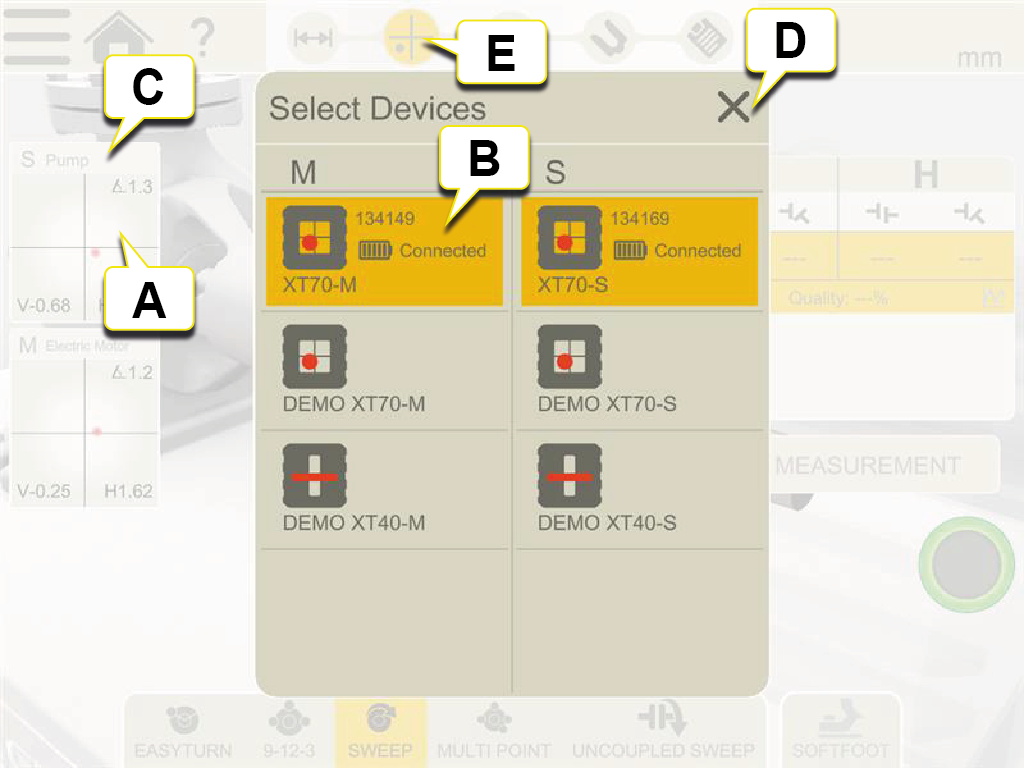
- Tap a target to display the device list.
- Select the devices you wish to connect. Tap selected device to disconnect.
- Device type and serial number.
- Tap
 to close.
 - Tap Measure icon in the workflow to start measuring.
For selecting Measuring units in Values and Straightness, see respective chapter.
Measuring units and programs
| XT70 | XT60 | XT50 | XT40 | |
| Values | X | X | X | X |
| EasyTrend | X | |||
| Horizontal (EasyTurn or 9-12-3) | X | X | X | X |
| Horizontal (Multi or Sweep) | X | X | X | |
| Horizontal (Adjustment Guide) | X | X | ||
| Machine Train (two couplings) | X | X | X | |
| Machine Train (two or more couplings) | X | X | ||
| Machine Train (Adjustment Guide) | X | X | ||
| Vertical | X | X | X | X |
| Cardan | X | X | X | |
| Twist | X | X | X | |
| Basic Flatness | X | |||
| Straightness | X |
The live option "Live360" is only available when using XT70.
Charge
Charge the measuring units by plugging in the power adapter intended for the measuring units.
To fully charge the battery takes approx. 2 hours. Operating time for XT40 and XT60 is up to 24 h.
It is possible to keep on using the equipment while it is charging.
NOTE! When finished working for the day, charge the whole system. Plug in the power adapter to the measuring units.
Information in the Display unit
Information regarding the Measuring units is also shown in the Display unit. On the targets you can clearly see when the battery is running low and the inclinometer value for example.

|
Battery information. |

|
No measuring unit is connected. Tap the target to find possible units. |

|
Inclinometer value. |
Edge warning
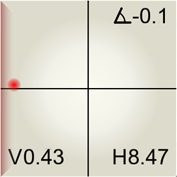
When the laser beam is close to the edge, the edge is “lit up” as a warning. It is still possible to register values when the edge warning is active.
Troubleshooting
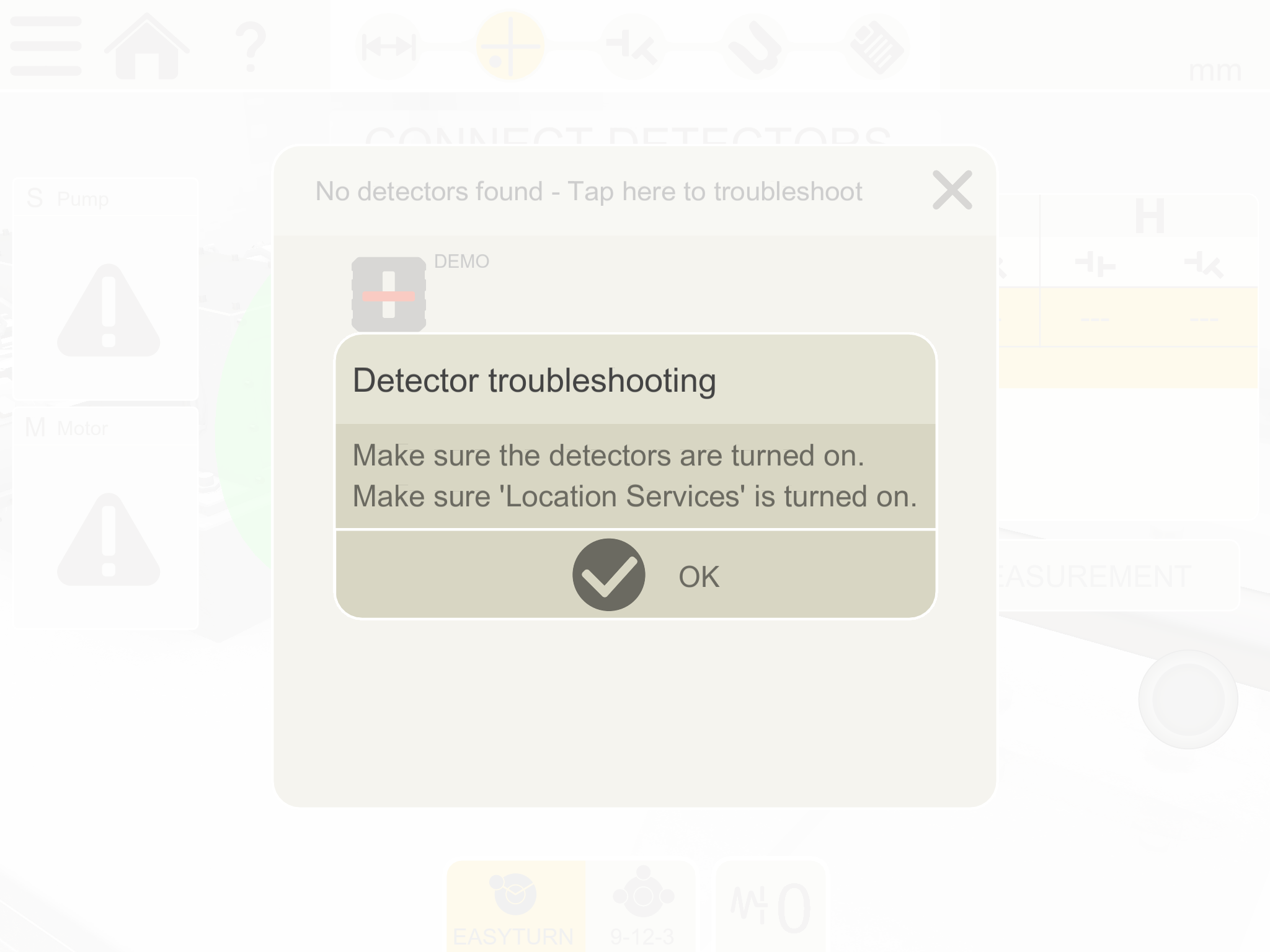
- Make sure that the measuring units are turned on.
- Make sure that they are charged.
- Make sure that you have NOT paired your measuring units outside of the XT app before starting the app. Doing so will cause the measuring units to not show up in the app.
- Make sure that "Location services" is on. On a phone or tablet, this function is usually found under Settings > Integrity/Location.
NOTE! If you don’t want to say "yes" to geographic location services for any reason, we recommend that you use the Easy-Laser XT Display Unit.The XT-app never records or saves any location data, regardless if it is on a XT Display Unit or a mobile telephone.
NOTE! XT measuring units produced in November 2022 or later will not be compatible with the XT11 rev 1 Display unit (serial number 129231 or lower). The new measuring units have the UKCA mark on the label from November 2022 onwards. If you want to purchase new measuring units and are currently using an XT11 rev 1 Display unit, please contact your local distributor for advice before placing an order.