File manager
On the Start view, tap  to open the File Manager.
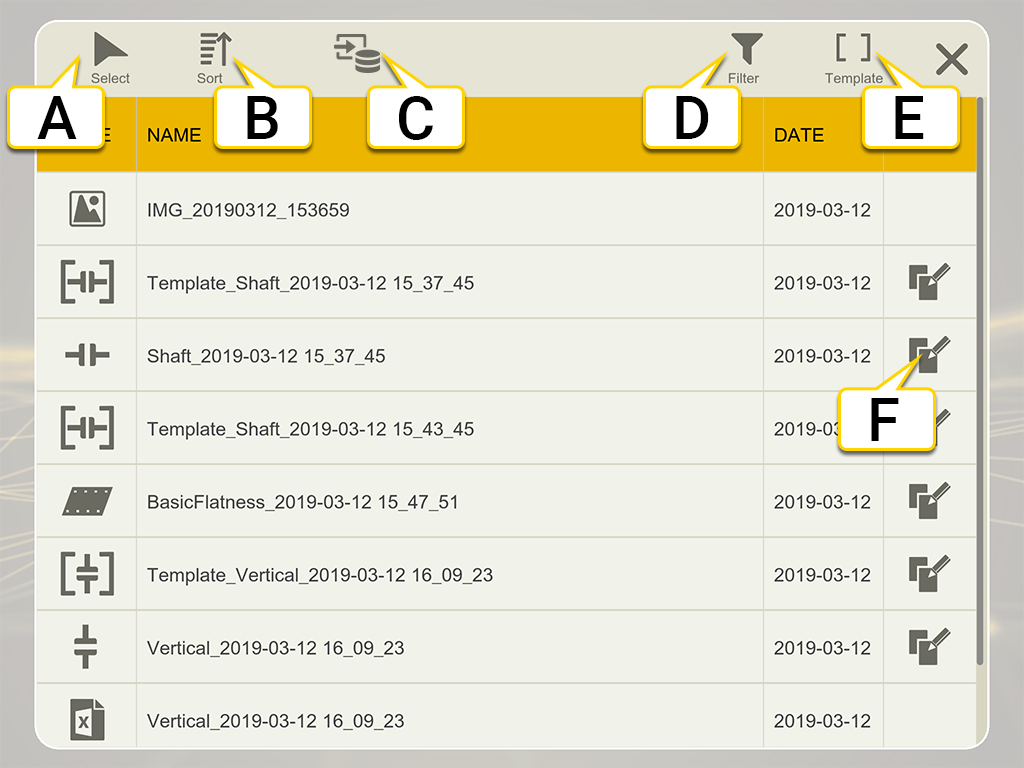
- Select files.
- Sort files.
- Source. Tap to show local files or files on a USB.
- Filter view. Use filters to easily find the files you are looking for. Go to Filter files.
- Templates. Quick access to your measurement templates. Tap to open the filter view displaying all your templates.
- Create a editable copy of the file. The file will be saved with a new name.
Delete files
- Tap
 to activate check boxes.
 - Select one or many files.
- Tap
 . You will be asked to confirm the deletion.
Share files
- Tap to activate check boxes.
- Select one or many files.
- Tap
 . On the XT Display Unit it is possible to share to email or USB. Send email to multiple recipients by separating with space, comma or semicolon.
Sort files
By default, the files are sorted by date.
- Tap
 .
. - Select Type, Name or Date. It is possible to have rising or falling order.
Copy and edit file
When a measurement has been finalized, it is no longer editable. It is however possible to open a copy and continue working were the last session was ended.
- Tap
 to open a editable copy of the selected measurement. This measurement will be saved with a new name when you finalize it.
 - If you have a finalized measurement open, tap
 and to open a copy of it.
Import files from USB
By default, the files saved in the Display unit are shown. If you want to import files from a USB, follow these steps:
- Tap
 to select source.
 - Tap
 to show the files on the USB memory stick.
 - Tap to activate check boxes. Select one or many files.
- Tap
 to import the selected files to the Display unit.
File types

|
Measurements. All finalized measurements are stored in File Manager and represented by the corresponding program icon. Tap a file to view it. Go to Finalize. |

|
Measurement icons with brackets are templates. Tap a file to open it. Go to Templates for measurements. |

|
Pdf-report. Tap a file to open it. Reports are stored as pdf-files. Go to Report Overview. |

|
Excel file. It is not possible to view Excel files in the XT11 Display unit. To view it, share it to a USB memory stick. |

|
Photos, IR-photos and screenshots. Images are stored as .png-files. The files are named with the date and time they were created. Tap a file to open it. Go to XT Display Unit Camera, Go to XT Display Unit Screenshot. |